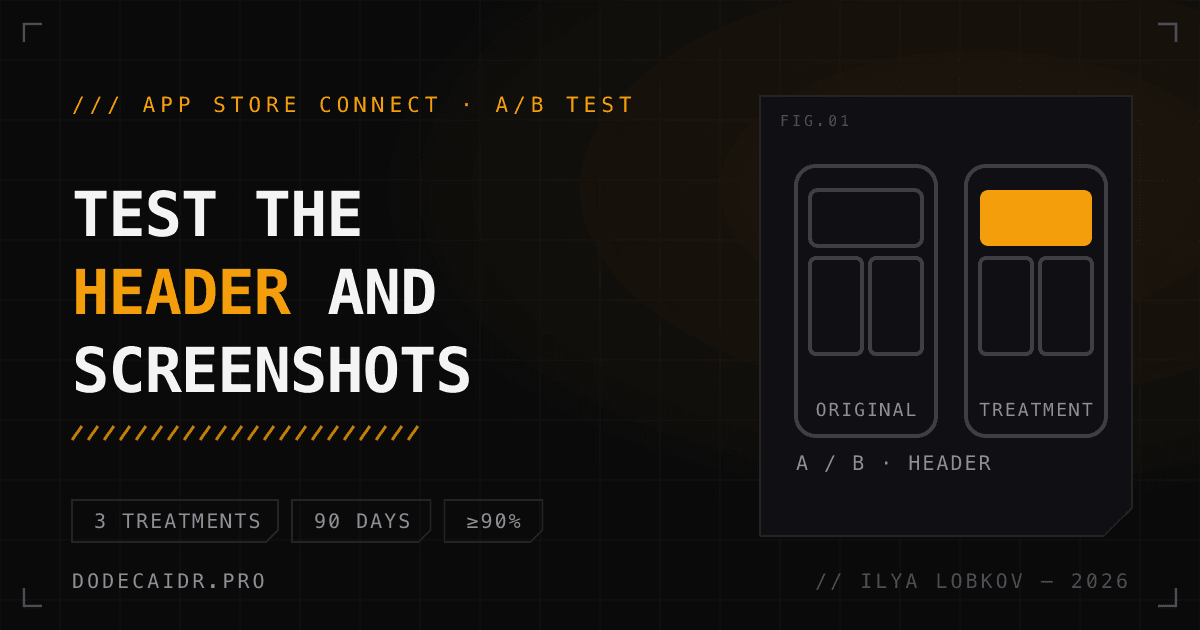
The Product Page Optimization item in the App Store Connect sidebar now carries a "New" badge. The App Store A/B test itself has existed since 2021, but on October 5, 2026 Apple added something it never had before: you can now test the product page header and the image shown in search results. I went through Apple's help pages step by step to see what changed and where test setup is easy to get wrong.
The short version:
- A test compares the default page against up to three treatments. You can change the icon, screenshots and previews, and since October also the header and the search image.
- You can't just upload an icon for a test. It has to be inside the binary of a version that is already live in the App Store, so you ship it in a release ahead of time.
- New screenshots in treatments go through review, but you don't need a new app version for that.
- Apple marks a winner at 90% confidence or higher. A test runs for up to 90 days.
- Apply Treatment moves only screenshots and previews to your page. The icon changes with your next version.
What changed in product page optimization#
On October 5 Apple released new creative assets: the product page header and the image for search results. I covered their sizes and moderation rules separately, in the article on the header and search image in the App Store. Three changes matter for A/B testing.
- Two tabs in a treatment. The treatment settings now have a Header and Search Results tab and an App Previews and Screenshots tab. The first one is where you test the header and the search image.
- Assets from the library. The Browse Assets button puts images and videos already approved in your asset library into a treatment. You can send an asset to review ahead of time, without a new version, and keep it ready.
- Preview. The new preview tool also shows test treatments: in dark mode, on different devices, including iPhone Duo.
The creative assets themselves work on iOS and iPadOS 27 and later. Treatments with screenshots and an icon are shown to users on iOS 15 and later.
What you can test and what you can't#
| You can test | You can't test |
|---|---|
| The icon (up to three alternatives) | Name and subtitle |
| Screenshots and previews for any device size | Description and keywords |
| The header and the search image (since October 2026) | Category and price |
If a treatment leaves something untouched, say the iPad screenshots, the visitor sees whatever is on your main page. A test can't run on custom product pages or on the pages of Apple Watch and iMessage apps.
You can start a test only if the app is already in the App Store and the version has the Ready for Distribution status. You need the Account Holder, Admin, App Manager or Marketing role.
App icon A/B test: ship it in advance#
This is the easiest place to go wrong when planning. The App Icon tab appears in a treatment only if the binary of the current version contains more than one icon. The alternative icons must sit in the asset catalog at 1024×1024, and the version has to be built with Xcode 13 or later.
So the order is: first a release with the alternative icons already in the catalog, and only then the test.
There is one more consequence. Someone who downloads the app from a treatment page sees the treatment's icon both during the download and on the home screen. And when a treatment wins, Apply Treatment won't carry the icon over: you have to make it the default in your next version.
How to start a test#
- In the sidebar, open Product Page Optimization and choose Create Test.
- Enter a test name. It shows up in analytics.
- Pick the number of treatments, up to three. Apple says outright that the more you have, the longer you wait for a conclusion.
- Set the traffic share. This is the percentage of people who see treatments instead of the main page, split equally. With three treatments and 30%, each treatment gets 10% of traffic.
- Choose localizations. All are selected by default. Someone from an excluded localization never enters the test.
- Estimate Your Test Duration. You pick the conversion lift you want, and App Store Connect uses your impressions and downloads to estimate the wait. The estimate has no effect on the test itself.
A test runs for up to 90 days or until you stop it. The help page warns plainly that you may not reach the lift you wanted within 90 days.
Before the start, all new material in treatments has to pass App Review. You can submit it without a new version, including in one batch with in-app purchases, events and custom product pages. If you only reordered screenshots that are already published, or switched the icon, there is nothing to submit.
How to read the results#
Analytics shows four numbers per treatment: unique impressions, conversion, improvement over the main page, and confidence. According to the results help page, Apple calculates them with Bayesian methods and takes your page's past data into account. The numbers update daily.
- Performing Better / Performing Worse. The treatment beats or trails the main page at 90% confidence or higher.
- Likely to be Inconclusive. There probably won't be enough data even after 90 days.
- First results. They appear after the first five downloads.
If you release a version with new screenshots in the middle of a test, the result can be skewed. This is also from Apple's help.
You apply the winner with Apply Treatment. One treatment per test can be applied, it can't be undone, and the running test stops. Only screenshots and previews carry over.
What a small app should do#
Apple doesn't publish thresholds like "you need 10,000 impressions." Such figures turn up in ASO service blogs, but they are those services' own estimates. The only benchmark from Apple is Estimate Your Test Duration run on your own data.
The practical conclusion for an app with modest traffic: one treatment with a large traffic share gets you a result faster than three treatments at 10% each. And test what is visible before the tap, the first screenshot or the search image. A difference in the fifth screenshot may never show up within 90 days.
What Apple doesn't explain#
As of November 9, 2026, Apple's help has no answer to three questions:
- The header after Apply Treatment. The Apply Treatment page talks only about screenshots and previews. Whether the header and the search image from the winning treatment carry over isn't stated. Check the page by hand.
- Older iOS versions. Creative assets work from iOS 27, while test treatments are shown from iOS 15. What an iOS 26 user sees in a treatment that changes only the header isn't described in the documentation.
- Apple Ads compatibility. Creative assets in Apple Ads are still marked "coming soon," and how a test will work alongside ad campaigns is unknown.
I covered how to tie the search image to keywords and custom product pages in the article on App Store promotion in fall 2026. The A/B test is the next step: finding out which of those images actually brings people in.


